The right computer monitor for multitasking can replace a two-screen setup while giving you more room for documents, spreadsheets, research, and communication tools.
We selected 10 strong options across QHD, ultrawide, curved, smart, and dual-QHD formats, with attention to resolution, connectivity, refresh rate, ergonomics, and everyday comfort.
Best 10 Computer Monitor for Multitasking Picks for 2026
Best UltraWide Workspace

- 34-inch 3440 x 1440 UltraWide display
- Picture-by-Picture supports two input sources
- USB-C delivers up to 65W power
Best For: Single-screen office multitasking
Best for Smooth Productivity

- 34-inch 3440 x 1440 curved display
- 120Hz refresh rate with FreeSync Premium
- USB-C offers up to 65W power delivery
Best For: Comfortable work and media use
Best Smart Multitasking Monitor

- 34-inch 3440 x 1440 curved UltraWide screen
- Built-in webOS streaming access
- AirPlay 2 and HomeKit compatibility
Best For: Work, streaming, and screen sharing
Best Budget Large-Screen Option

- 32-inch Full HD display
- Three-sided borderless design for multi-monitor setups
- Eye Saver Mode and Flicker Free technology
Best For: Everyday office multitasking
Balanced Performance Pick

- QHD resolution supports detailed multitasking
- 144Hz refresh and 1ms MPRT for smooth motion
- Fully adjustable stand with built-in speakers
Best For: Office work, gaming, and flexible everyday setups
Best for Everyday Use

- 34-inch 21:9 curved display for side-by-side windows
- 3440x1440 resolution provides expansive workspace
- Eye Saver Mode and FreeSync Premium included
Best For: Professional multitasking and spacious office workflows
Single-Cable Multitasking Pick
LG 34U530A-W UltraWide Monitor
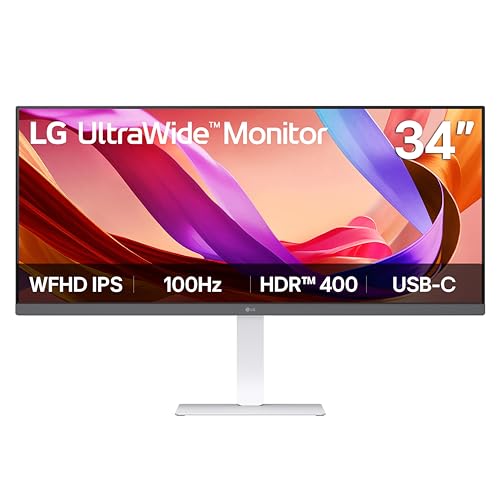
- 34-inch 21:9 IPS workspace for multiple windows
- USB Type-C supports display output and data transfer
- Switch app splits the screen into up to six sections
Best For: Laptop-based work, hybrid offices, and everyday multitasking
Best Balanced Ultrawide
Samsung ViewFinity S50GC 34-Inch

- 34-inch 3440 x 1440 ultrawide workspace
- PBP and PIP support multiple sources
- 100Hz refresh rate with HDR10 and eye care
Best For: Office multitasking, design work, and mixed desktop use
Best Value Gaming Ultrawide

- 34-inch 3440 x 1440 curved display
- 165Hz refresh rate and 1ms MPRT
- 99% sRGB with FreeSync Premium
Best For: Gaming combined with everyday multitasking
Best Premium Productivity Display

- 49-inch 5120 x 1440 Dual QHD workspace
- USB-C with 90W charging and hub connectivity
- 120Hz refresh rate with HDR400 and speakers
Best For: Professional workflows and replacing a dual-monitor setup
Best UltraWide Workspace – LG 34WR55QK-B
If you want a computer monitor for multitasking, the LG 34WR55QK-B provides a spacious 34-inch, 21:9 WQHD canvas for keeping multiple windows visible on one screen. Its curved VA panel, 100Hz refresh rate, USB-C connectivity, and workspace-splitting features make it a practical fit for work and multimedia.
Best For: Professionals and home-office users who want an expansive single-screen setup with flexible connectivity.
Pros:
- 3440 x 1440 UltraWide resolution offers room for multiple open windows.
- OnScreen Control supports screen splitting and Picture-by-Picture from two input sources.
- USB-C provides up to 65W power delivery, alongside HDMI and DisplayPort.
- Height- and tilt-adjustable stand plus Reader Mode support longer work sessions.
Cons:
- Its 34-inch footprint requires considerable desk space.
- The 5ms response time is less focused on fast gaming than some specialized displays.
The LG stands out when multitasking efficiency is the priority. Picture-by-Picture, USB-C charging, and a wide 3440 x 1440 display reduce the need for a second monitor, while HDR10 and 99% sRGB support add flexibility for entertainment and everyday creative work.
Best for Smooth Productivity – Dell S3425DW
The Dell S3425DW is a strong computer monitor for multitasking, pairing a 34-inch 3440 x 1440 curved display with a 21:9 layout. Its 120Hz refresh rate, USB-C connection with up to 65W power delivery, and eye-comfort features suit users who move between work, media, and light gaming.
Best For: Work-focused users who want a smooth, comfortable ultrawide display with simple laptop connectivity.
Pros:
- WQHD UltraWide resolution provides substantial horizontal workspace.
- 120Hz refresh rate and FreeSync Premium support smooth motion.
- USB-C connectivity can deliver up to 65W while helping reduce cable clutter.
- ComfortView Plus, matte coating, and built-in speakers support everyday use.
Cons:
- The 20.7-pound weight may make repositioning more difficult.
- It has two HDMI ports but no DisplayPort listed in the supplied specifications.
With its high refresh rate, 3000:1 contrast ratio, and broad 99% sRGB and 95% DCI-P3 coverage, the S3425DW balances productivity and entertainment well. It is especially appealing for laptop users who want one USB-C cable for their desk setup.
Best Smart Multitasking Monitor – LG 34SR60QC-W Smart Monitor
For shoppers seeking a computer monitor for multitasking and streaming, the LG 34SR60QC-W combines a 34-inch 21:9 QHD display with built-in webOS. You can connect a computer or console, access streaming services without a separate device, and use screen sharing features with compatible Apple devices.
Best For: Users who want one ultrawide screen for work, streaming, casting, and casual gaming.
Pros:
- 3440 x 1440 resolution and a 1800R curve create a broad, immersive workspace.
- Built-in webOS provides access to major streaming apps and LG Channels.
- AirPlay 2, HomeKit, and screen-sharing support add convenient wireless options.
- Two HDMI ports, three USB ports, built-in speakers, and a 100Hz refresh rate improve versatility.
Cons:
- Its smart features are geared toward multimedia rather than advanced office docking.
- The supplied specifications do not list USB-C connectivity.
The 34SR60QC-W is more than a conventional monitor: it can function as a connected entertainment display while still offering a wide QHD workspace. Choose it when built-in streaming and casting are as important as keeping several work windows open.
Best Budget Large-Screen Option – Samsung S32B304NWN
The Samsung S32B304NWN is a straightforward computer monitor for multitasking when you want a large screen at a more basic specification level. Its 32-inch Full HD display, three-sided borderless design, 75Hz refresh rate, and eye-care modes make it suitable for everyday business and multimedia tasks.
Best For: Office users who prefer a roomy conventional 16:9 screen or plan to build a multi-monitor setup.
Pros:
- 32-inch display provides more working area than a typical compact monitor.
- Three-sided borderless design helps align screens in a multi-monitor arrangement.
- Eye Saver Mode and Flicker Free technology support extended computing.
- AMD FreeSync and a 75Hz refresh rate help keep motion smoother.
Cons:
- 1920 x 1080 resolution offers less workspace detail than the ultrawide QHD models here.
- Only one HDMI port is listed in the supplied details.
- The 8ms response time and 75Hz refresh rate are more modest for fast-paced gaming.
This Samsung is a sensible choice for documents, browser windows, and general office work, particularly if you value a conventional aspect ratio or want to add matching displays. It lacks the higher resolution and USB-C convenience of the ultrawide alternatives, but its borderless design and eye-care tools support practical everyday use.
Balanced Performance Pick – Dell 27 Plus QHD Monitor
If you want a computer monitor for multitasking that also handles gaming and entertainment well, the Dell S2725DSM is a versatile 27-inch option. Its QHD resolution provides more workspace than standard 1080p, while the adjustable stand helps you maintain a comfortable position during long work sessions.
Best For: Office work, multitasking, gaming, and users who want built-in audio with flexible ergonomics.
Pros:
- QHD 2560×1440 resolution offers a detailed workspace for multiple windows.
- 144Hz refresh rate and 1ms MPRT support smooth motion for gaming and video.
- Height, tilt, pivot, and swivel adjustments make positioning easier.
- Integrated dual 3W speakers and eye-comfort features reduce the need for extra accessories.
Cons:
- Its 27-inch 16:9 layout provides less horizontal space than an ultrawide monitor.
- Only one HDMI port is listed.
The Dell is a strong all-around choice when you need sharp text, smooth motion, and an ergonomic stand without moving to an ultrawide format. AMD FreeSync and the matte, flicker-free display add useful everyday flexibility.
Best for Everyday Use – Samsung 34 ViewFinity S5
The Samsung ViewFinity S5 is a practical computer monitor for multitasking if you prefer one wide screen over two smaller displays. Its 34-inch curved 21:9 panel and 3440×1440 resolution provide substantial horizontal workspace for documents, browsers, and creative applications.
Best For: Professionals and office users who want a spacious ultrawide workspace for managing multiple windows.
Pros:
- 34-inch 21:9 ultrawide format makes side-by-side window layouts easier.
- 3440×1440 QHD resolution delivers more usable detail across the broad panel.
- 1800R curvature creates a more enveloping viewing area.
- HDR10, Eye Saver Mode, and FreeSync Premium add useful visual features.
Cons:
- The VA panel has a listed 5ms response time, slower than the Dell’s specified response time.
- The wide footprint requires more desk space than a standard 27-inch monitor.
Choose the Samsung when maximizing screen real estate is the priority. Its ultrawide aspect ratio is especially useful for keeping several applications visible, while HDMI and DisplayPort connectivity simplify setup.
Single-Cable Multitasking Pick – LG 34U530A-W UltraWide Monitor
The LG 34U530A-W is a computer monitor for multitasking built around a 21:9 workspace and convenient laptop connectivity. Its 34-inch IPS panel lets you keep multiple windows open, while USB Type-C, DisplayPort, and HDMI provide flexible connection options.
Best For: Laptop users, hybrid workers, and creators who want an ultrawide display with USB Type-C and built-in speakers.
Pros:
- 34-inch 21:9 format provides more horizontal room for multiple windows.
- USB Type-C supports display output and data transfer for a cleaner laptop setup.
- IPS viewing angles, up to 99% sRGB coverage, and DisplayHDR 400 support vivid visuals.
- Switch app can divide the screen into up to six sections.
Cons:
- 2560×1080 resolution is lower than the Samsung’s 3440×1440 ultrawide resolution.
- The listed 100Hz refresh rate is lower than the 120Hz and 144Hz options in this group.
The LG stands out for streamlined desk setups, particularly when connecting a compatible laptop through USB Type-C. Its split-screen software, adjustable stand, and built-in Waves MaxxAudio speakers make it well suited to practical work-from-home multitasking.
Best Balanced Ultrawide – Samsung ViewFinity S50GC 34-Inch
The Samsung ViewFinity S50GC is a practical computer monitor for multitasking, combining a 34-inch Ultra-WQHD display with a 21:9 aspect ratio. Its PBP and PIP modes let you view multiple sources, while the 100Hz refresh rate supports smoother scrolling, video, and design work.
Best For: Office multitasking, content creation, and users who want multiple inputs on one screen.
Pros:
- 3440 x 1440 resolution provides generous workspace for side-by-side windows.
- PBP displays two sources at native resolution, while PIP supports monitoring a second source.
- HDR10, 100Hz refresh rate, FreeSync, and built-in eye-care features add versatility.
- Includes two HDMI inputs and DisplayPort connectivity.
Cons:
- Its 5ms response time and 100Hz refresh rate are less gaming-focused than faster alternatives.
- The flat 34-inch panel may require considerable desk space.
Choose this model if you want a well-rounded ultrawide for productivity rather than maximum gaming speed. Its standout multitasking features are the dual-source viewing modes and wide 3440 x 1440 workspace.
Best Value Gaming Ultrawide – Sceptre 34-Inch Curved WQHD
The Sceptre C345B-QUT168 is a computer monitor for multitasking that adds a curved 34-inch workspace and gaming-oriented performance. Its 3440 x 1440 resolution gives room for multiple windows, while the 165Hz refresh rate and 1ms MPRT response time suit fast-moving content.
Best For: Gamers who also need a spacious screen for productivity, editing, or business applications.
Pros:
- Ultrawide 3440 x 1440 resolution provides more workspace than a conventional 1080p monitor.
- 165Hz refresh rate and 1ms MPRT support smooth, responsive motion.
- Curved R1500 design, 99% sRGB coverage, and AMD FreeSync Premium enhance the viewing experience.
- Includes built-in speakers, two HDMI ports, and two DisplayPort connections.
Cons:
- The 280 cd/m² brightness is lower than some productivity-focused displays.
- It lacks the supplied Samsung model’s PIP/PBP and USB-C hub features.
- The listed 240-volt specification may require checking compatibility with your setup.
This Sceptre is a strong fit when multitasking and gaming share equal priority. It offers a broad curved canvas and notably fast refresh performance, though its connectivity is more basic than a business-oriented monitor.
Best Premium Productivity Display – Samsung 49-Inch Dual QHD
The Samsung S95UA is a premium computer monitor for multitasking, offering a 49-inch 32:9 curved screen with Dual QHD resolution. It can replace a dual-monitor setup while also serving as a USB-C hub with 90W charging, multiple video inputs, and built-in speakers.
Best For: Professionals managing many windows, laptops, peripherals, and demanding desktop workflows.
Pros:
- 5120 x 1440 Dual QHD resolution delivers an expansive single-screen workspace.
- USB-C supports 90W charging, while DisplayPort, HDMI, USB, and Ethernet improve connectivity.
- 120Hz refresh rate supports smoother scrolling and motion.
- HDR400, height adjustment, built-in speakers, and a three-year manufacturer warranty add convenience.
Cons:
- The 49-inch, 45.18-inch-wide design requires substantial desk space.
- At 32.2 pounds, it is less convenient to move or reposition than smaller monitors.
- Its premium feature set may be excessive for basic office tasks.
This is the most capable option for replacing two monitors with one continuous workspace. Choose it when screen area, docking convenience, and business-focused connectivity matter more than compact size or simplicity.
How We Picked the Best Computer Monitor for Multitasking
We focused on displays that make side-by-side work practical rather than merely offering a large diagonal size. Resolution, usable screen width, panel type, refresh rate, connectivity, and eye-comfort features were central considerations. We also included different formats so shoppers can choose between a conventional 27-inch QHD monitor, a 34-inch ultrawide, or a 49-inch dual-QHD display.
Features such as USB-C, picture-by-picture support, built-in speakers, HDR, adaptive sync, and VESA compatibility can improve convenience, but they should be weighed against price and the type of work you do.
Quick Comparison
- Best all-around ultrawide workspace: A 34-inch WQHD model offers useful width and sharp text without demanding an exceptionally large desk.
- Best for compact desks: A 27-inch QHD monitor delivers clear text and efficient multitasking in a smaller footprint.
- Best for entertainment and flexible use: A smart ultrawide with streaming features can serve as both a work display and a media screen.
- Best for maximum workspace: A 49-inch dual-QHD monitor provides the closest single-screen alternative to two 27-inch displays.
- Best for value-focused buyers: A lower-cost 34-inch ultrawide can provide expansive workspace while reducing the need for multiple monitors.
Key Buying Factors for a Computer Monitor for Multitasking
Screen Size and Aspect Ratio
For most people, 34 inches in a 21:9 ultrawide format is the sweet spot. It supports two or three application windows while remaining easier to place than a 49-inch display. A 27-inch 16:9 screen is better when desk space is limited, while a 49-inch model suits heavy spreadsheet, editing, trading, or dashboard workflows.
Resolution and Text Clarity
WQHD or 3440 × 1440 is preferable for a 34-inch ultrawide because it keeps text and interface elements relatively sharp. A 2560 × 1080 ultrawide can still work well for general office use, but it offers less vertical detail. Dual-QHD is the strongest choice for maximizing usable workspace and clarity on a very large panel.
Connectivity and Workflow Features
Check whether the monitor includes the ports your computer needs. USB-C is especially useful for compatible laptops, while DisplayPort and HDMI cover most desktop setups. Picture-by-picture and picture-in-picture modes help combine two sources, and USB hubs or built-in speakers can reduce desk clutter.
Comfort, Motion, and Ergonomics
Look for height adjustment, tilt, VESA mounting, flicker reduction, and low-blue-light or reader modes. Refresh rates from 100Hz to 120Hz make scrolling feel smoother, while higher rates and adaptive sync are useful if the monitor will also be used for gaming.
Who Should Buy Which Computer Monitor for Multitasking?
Choose a 27-inch QHD model if you want sharp text and a manageable footprint. Choose a 34-inch WQHD ultrawide for the best balance of workspace, clarity, and price. A smart ultrawide is ideal for buyers who want built-in streaming and speakers. Pick a 49-inch dual-QHD display if replacing two monitors matters more than desk space or budget. Finally, prioritize USB-C, eye-care features, or height adjustment when your laptop workflow, long workdays, or ergonomic setup makes those features essential.