The best drawing tablets with tilt support make digital shading, angled strokes, and expressive linework feel more natural. This roundup compares compact pen tablets and screen-based models for beginners, students, illustrators, and professionals.
We focused on stylus control, active area, shortcut options, compatibility, display quality where applicable, and overall value so you can choose the right setup for your workflow.
Best 10 Drawing Tablets with Tilt Support Picks for 2026
Screen-Based Starter
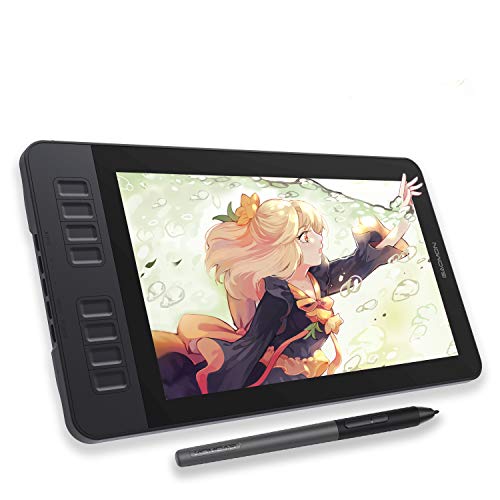
- 11.6-inch Full HD matte-finish display
- Battery-free 8,192-pressure pen with tilt support
- Eight programmable keys and broad software compatibility
Best For: Beginners who want a compact pen display
Compact Classic
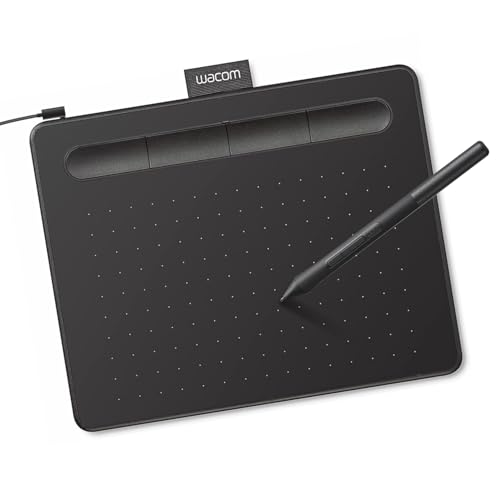
- Compact screenless design with battery-free EMR pen
- 4,096 pressure levels and four ExpressKeys
- Works with Windows, Mac, Android, and Chromebook
Best For: Students and teachers seeking a compact screenless tablet
Dial-Controlled Display

- 11.6-inch fully laminated 1080p display
- 60° tilt support and 8,192 pressure levels
- Red Dial plus eight customizable shortcut keys
Best For: Artists wanting a portable display with tactile controls
Large Screenless Workspace

- 10×6-inch working area for PC and laptop use
- 60° tilt support with 8,192 pressure levels
- Eight side keys plus 16 programmable shortcuts
Best For: Creators wanting a spacious screenless tablet with many controls
Premium Screen Pick

- 13.3-inch fully laminated FHD display
- 16K pressure sensitivity with battery-free stylus
- Red dial, eight keys, and included stand
Best For: Direct-on-screen drawing and detailed digital artwork
Large Workspace Value

- 10-by-6.25-inch active drawing area
- ±60-degree tilt support and 8K pressure
- 12 hot keys plus 16 soft express keys
Best For: Screenless drawing, teaching, and shortcut-heavy workflows
Feature-Rich Slim Pick

- 10.2-by-6.35-inch work area in a 7mm body
- 60-degree tilt and 8K pressure sensitivity
- Shortcut, touch-strip, and multimedia controls
Best For: Slim screenless setups for drawing, editing, and remote work
Best Display Tablet

- 16-inch 2.5K IPS display
- Pro Pen 3 with 60° tilt support
- Wide 99% DCI-P3 color coverage
Best For: Artists who want a direct-on-screen drawing experience
Best Beginner Value

- 16K pressure-sensitive battery-free stylus
- Up to 60° tilt support
- Large 10 x 6.25-inch drawing area
Best For: Beginners learning digital drawing and shading
Best Wireless Setup
Xencelabs Medium Graphic Tablet

- Wireless Bluetooth and USB connectivity
- Two battery-free pens included
- 8192 levels with tilt recognition
Best For: Artists prioritizing comfort and wireless flexibility
Screen-Based Starter – GAOMON PD1161
The GAOMON PD1161 is a practical choice among drawing tablets with tilt support if you want to draw directly on a screen. Its 11.6-inch Full HD display, battery-free tilt-enabled pen, and customizable controls suit illustration, photo editing, and digital note-taking, but it must be connected to a Windows or Mac computer.
Best For: Beginners, students, and artists who prefer a compact pen display for drawing directly on-screen.
Pros:
- 11.6-inch Full HD IPS screen with a pre-installed matte film to reduce glare and add a paper-like feel.
- Battery-free stylus with 8,192 pressure levels and tilt support.
- Eight programmable side keys plus two pen buttons for customizable shortcuts.
- Compatible with Windows, macOS, and numerous creative and collaboration applications.
Cons:
- Not a standalone tablet; it requires a compatible computer.
- Connection requires available HDMI and USB ports, and some setups may need an adapter or extra power.
Its screen-based workflow and included accessories make the PD1161 approachable for new digital artists. Check your computer’s ports and power capability before buying.
Compact Classic – Wacom Intuos Small
The Wacom Intuos Small is a compact, screenless option for shoppers comparing drawing tablets with tilt support, although the supplied specifications do not list tilt support for this model. Its battery-free EMR pen, 4,096 pressure levels, and four ExpressKeys provide a straightforward setup for digital art, editing, and document markup.
Best For: Students, teachers, and creators who want a small, dependable tablet for computer-based creative work.
Pros:
- Battery-free pen designed for precise, pen-on-paper-style control.
- Four ExpressKeys provide quick access to shortcuts.
- Works with Windows, macOS, Android, and Chromebook devices.
- Includes access to creative software and Wacom online training after registration.
Cons:
- It has no built-in display, so you draw while looking at the connected screen.
- Its 4,096 pressure levels are lower than the 8,192 levels offered by several alternatives in this roundup.
- Tilt support is not identified in the supplied product details.
The Intuos Small emphasizes portability and familiar Wacom pen control rather than an on-screen drawing experience. It is worth considering when a compact, screenless design matters more than confirmed tilt functionality.
Dial-Controlled Display – XP-Pen Artist 12 Pro Lite
The XP-Pen Artist 12 Pro Lite stands out among drawing tablets with tilt support for its 11.6-inch fully laminated display and stylus with up to 60° tilt recognition. The 1920×1080 screen, Red Dial, and shortcut keys are designed for direct drawing, shading, and efficient creative workflows.
Best For: Artists, animators, and designers who want a portable pen display with strong shortcut customization.
Pros:
- Fully laminated 11.6-inch IPS display helps reduce parallax and supports a paper-like drawing feel.
- Stylus offers up to 60° tilt support and 8,192 pressure levels for shading and line control.
- Programmable Red Dial and eight shortcut keys support customized workflows.
- Compatible with Windows, macOS, ChromeOS, Linux, and popular creative software.
Cons:
- It is a drawing display that connects to a laptop or desktop rather than a standalone tablet.
- The 3-in-1 cable still requires a compatible computer connection.
For creators who actively use tilt-based shading, the Artist 12 Pro Lite combines confirmed 60° support with a laminated screen and tactile controls. Its broad operating-system compatibility also makes it flexible across different setups.
Large Screenless Workspace – Artisul A1201
The Artisul A1201 is a screenless pick among drawing tablets with tilt support, offering a spacious 10×6-inch working area and a battery-free pen with 60° tilt support. Its fast report rate, programmable controls, and support for computers, Chromebooks, and Android devices make it useful for art, teaching, signatures, and remote work.
Best For: Beginners and creators who want a larger screenless workspace with extensive shortcut customization.
Pros:
- 10×6-inch working area provides room for drawing on a PC or laptop.
- Battery-free stylus includes 8,192 pressure levels and 60° tilt support.
- Eight side keys and 16 additional programmed shortcut keys can speed up workflows.
- Supports Windows, macOS, Chromebook, Android, and many creative applications.
Cons:
- No built-in display; artwork appears on the connected computer or mobile device.
- Android use reduces the working area to 161.5×90.8 mm according to the supplied details.
- The larger control layout may be more than users need for simple tasks.
The A1201 offers strong value for users who prefer a generous screenless surface and many programmable controls. Its confirmed tilt support and mobile compatibility add flexibility, while the lack of an integrated display keeps the setup computer-dependent.
Premium Screen Pick – XP-PEN Artist 13.3 Pro V2
If you want drawing tablets with tilt support and a built-in display, the XP-PEN Artist 13.3 Pro V2 combines direct-on-screen drawing with a highly customizable workflow. Its 13.3-inch fully laminated display, battery-free stylus, and included stand make it suited to detailed digital art while remaining compatible with computers, Chromebooks, and supported Android devices.
Best For: Artists, illustrators, animators, and students who prefer drawing directly on a screen.
Pros:
- 16,384 pressure levels and a battery-free X3 Pro stylus for detailed, responsive strokes.
- Fully laminated 13.3-inch FHD display with wide stated color coverage and anti-glare film.
- Red dial, eight shortcut keys, dual pen-display and pen-tablet modes, and an included foldable stand.
Cons:
- Requires a separate computer or compatible device; it is not a standalone tablet.
- HDMI connectivity requires a separately sold 3-in-1 cable.
- Single-cable USB-C use requires a compatible full-featured USB-C port with DisplayPort support.
This is the most display-focused option in the group, with strong pressure sensitivity and useful hardware controls. Confirm your device’s port compatibility before buying, especially if you plan to use USB-C.
Large Workspace Value – GAOMON M106K PRO
For shoppers seeking drawing tablets with tilt support without a built-in screen, the GAOMON M106K PRO offers a spacious 10-by-6.25-inch work area and extensive shortcut controls. Its passive pen supports up to 60 degrees of tilt, while USB connectivity and Android support add flexibility for home, classroom, and mobile setups.
Best For: Students, teachers, and creators who want a large screenless tablet with many programmable controls.
Pros:
- Art Pen AP32 supports a stated ±60-degree tilt brush effect and includes eight replacement nibs.
- Battery-free pen provides 8,192 pressure levels without charging.
- Includes 12 programmable hot keys, 16 soft express keys, and a pen jacket.
- Works with Windows, macOS, and Android, with a lightweight 780-gram design.
Cons:
- No built-in display, so you draw while viewing your work on a connected device.
- Android active area is reduced to 6.25 by 3.5 inches.
- Uses a Mini USB connection rather than the newer USB-C standard.
The M106K PRO is a practical screenless choice when workspace and shortcuts matter more than portability. Its tilt-enabled pen and broad software compatibility make it suitable for both creative work and online education.
Feature-Rich Slim Pick – HUION HS611
The HUION HS611 is one of the more feature-packed drawing tablets with tilt support for users who want a slim, screenless design. Its battery-free stylus combines 8,192 pressure levels with 60-degree tilt support, while programmable shortcut, touch, and multimedia controls help streamline drawing, editing, and remote-work tasks.
Best For: Artists, teachers, editors, and remote workers who value a large work area and extra media controls.
Pros:
- PW500 battery-free stylus offers 8,192 pressure levels, 60-degree tilt, and a stated 266 PPS report rate.
- 10.2-by-6.35-inch working area in a 7mm ultra-thin body.
- Ten shortcut keys, a programmable touch strip, and eight dedicated multimedia keys.
- Supports Windows, macOS, Linux Ubuntu, and compatible Android devices through an adapter.
Cons:
- No built-in display; it must be used with a connected computer or compatible mobile device.
- Android cursor support has a stated limitation on Samsung Galaxy devices outside the Note series.
- The included mobile connection may require an adapter.
Choose the HS611 if you want tilt control plus unusually broad shortcut functionality in a thin tablet. It is especially appealing for multitasking, teaching, and editing, though users wanting direct-on-screen drawing should consider a pen display instead.
Best Display Tablet – Wacom Cintiq 16
The Wacom Cintiq 16 is a strong choice among drawing tablets with tilt support if you want to draw directly on a spacious, high-resolution screen. Its Pro Pen 3 supports 60° tilt recognition, while the 16-inch display provides a detailed workspace for illustration, animation, design, and 3D work.
Best For: Serious digital artists who prefer an on-screen drawing experience with wide-gamut color.
Pros:
- 16-inch IPS display with 2560 x 1600 resolution
- Pro Pen 3 offers 8192 pressure levels and 60° tilt support
- 99% DCI-P3 and 100% sRGB coverage
- Built-in fold-out legs create a 20-degree working angle
Cons:
- Requires a compatible Windows or Mac computer with DisplayPort Alt Mode or Thunderbolt 3/4
- Additional cables may be needed for computers without compatible inputs
- Heavier and less portable than screenless tablets
The Cintiq 16 stands out for artists who value screen quality and direct pen control. Confirm your computer’s port compatibility before buying, then use the built-in legs or an optional stand to set a comfortable angle.
Best Beginner Value – XP-Pen Deco 01 V3
The XP-Pen Deco 01 V3 is an accessible option among drawing tablets with tilt support, pairing a large 10 x 6.25-inch surface with a battery-free stylus. Its 16,384 pressure levels and up to 60° tilt support help beginners practice line control, shading, and digital sketching without charging a pen.
Best For: Beginners and students seeking a spacious, portable drawing pad with customizable shortcuts.
Pros:
- Battery-free stylus with 16,384 pressure levels
- Supports up to 60° of tilt for shading and varied strokes
- Eight customizable shortcut keys support left- and right-handed use
- Compatible with Windows, macOS, Android, Chrome OS, and Linux
Cons:
- Screenless design requires looking at a connected display while drawing
- Android compatibility starts at Android 10.0
- Shortcut and drawing-area layout may take adjustment for new users
With its generous active area, simple USB-C connectivity, and included accessories, the Deco 01 V3 offers a practical starting point for digital art. It is especially useful if you want tilt functionality without moving to a display tablet.
Best Wireless Setup – Xencelabs Medium Graphic Tablet
The Xencelabs Medium Graphic Tablet is a flexible pick among drawing tablets with tilt support, offering wireless connectivity, two battery-free pens, and an active area with a true 16:9 ratio. Its textured surface and ergonomic palm rest are designed for extended creative sessions on Windows, Mac, or Linux.
Best For: Artists who want a comfortable wireless tablet with multiple pen options and a paper-like surface.
Pros:
- Wireless Bluetooth connectivity plus USB support
- Includes two battery-free pens with different diameters and button layouts
- 8192 pressure levels with tilt recognition and virtually no lag
- Frosted, wear-resistant surface and curved palm rest
Cons:
- Screenless design does not show artwork directly on the tablet
- Active area is smaller than the tablet’s overall 12-inch footprint
- Wireless use adds another connection setup step
The Xencelabs is a well-rounded choice when comfort, wireless freedom, and pen flexibility matter more than an integrated display. Its two-pen setup and 16:9 active area make it adaptable for illustration and other desktop creative work.
How We Picked the Best Drawing Tablets with Tilt Support
We compared these 10 tablets by looking at the features that most affect everyday drawing: stylus tilt recognition, pressure sensitivity, active drawing area, shortcut controls, connection options, operating-system support, and included accessories. For display tablets, we also considered screen size and resolution. For pen tablets without screens, we weighed portability, workspace efficiency, and the quality of the bundled software or pens.
Because needs vary widely, the selection includes approachable models such as the Wacom Intuos Small and HUION HS611, larger shortcut-rich tablets such as the GAOMON M106K PRO, and display tablets ranging from compact 11.6-inch designs to the Wacom Cintiq 16.
Quick Comparison
| Best For | Recommended Type | What to Prioritize |
|---|---|---|
| Beginners and students | Small or medium pen tablet | Simple setup, compatibility, and value |
| Direct-on-screen drawing | Pen display | Screen size, resolution, parallax, and stand support |
| Shortcuts and larger gestures | Large pen tablet | Active area, programmable keys, and desk space |
| Portable work | Compact or wireless tablet | Weight, cable options, and battery-free stylus |
Key Buying Factors for Drawing Tablets with Tilt Support
Pen Tilt and Pressure Performance
Tilt support is most useful when your software uses angled input for shading, pencil texture, or brush-width changes. Confirm that your preferred apps recognize tilt, and look beyond the maximum pressure-level figure: consistent tracking, low activation force, and comfortable pen balance matter just as much.
Screen or No Screen?
A pen display lets you draw directly over the artwork, which can feel intuitive for painting and illustration. It usually costs more and requires more desk space, cables, and screen calibration. A screenless tablet is often lighter, more affordable, and comfortable for long sessions once hand-eye coordination becomes familiar.
Active Area and Shortcut Controls
A larger active area gives broad arm movement, while a compact model suits smaller desks and travel. Programmable keys can speed up zooming, undoing, panning, and brush changes, but they are less important if you already rely on keyboard shortcuts.
Compatibility and Connectivity
Check support for your computer, Chromebook, Android device, and preferred drawing applications before buying. Also verify whether the tablet uses USB-C, a proprietary cable, or wireless connectivity, and whether adapters are required.
Who Should Buy Which Drawing Tablets with Tilt Support?
Choose the Wacom Intuos Small or HUION HS611 if you want an approachable, screenless starting point. The GAOMON M106K PRO, Artisul A1201, or XPPen Deco 01 V3 make more sense if you want a larger workspace and extra shortcut controls.
For direct drawing on the display, consider the GAOMON PD1161, XPPen Artist 12 Pro, or XP-PEN Artist 13.3 Pro V2 for a compact setup. The Wacom Cintiq 16 is the more substantial choice for artists who prefer a larger professional-style canvas, while the XENCELABS Medium is a strong option when wireless flexibility and multiple pens matter.