The best drawing tablet for artists should feel natural to draw on while matching your workflow, workspace, and budget. Some artists want a portable standalone device, while others prefer a larger pen display or a compact graphics tablet connected to a computer.
We selected 10 strong options across those categories, prioritizing pen performance, screen quality, portability, shortcut controls, software compatibility, and overall value.
Best 10 Drawing Tablet for Artists Picks for 2026
Best All-in-One Pick

- Standalone Android 14 drawing tablet
- Paper-like matte display
- Lightweight battery-free Pro Pen 3
Best For: Computer-free mobile sketching and drawing
Best Pen Display for Color Work
- 13.3-inch full-laminated display
- 16,384-level PenTech 4.0 stylus
- Color-focused screen with dials and keys
Best For: Computer-connected illustration and color-sensitive work
Best Professional Shortcut Controls

- 10 ExpressKeys and two mechanical dials
- Customizable Pro Pen 3 ergonomics
- USB or Bluetooth desktop connectivity
Best For: Professional Mac and PC creative workflows
Best Beginner Value

- Large 10-by-6.25-inch active area
- 16,384-level battery-free stylus
- Eight customizable keys and broad compatibility
Best For: Beginners building computer-based digital art skills
Premium Screen Pick

- 2.5K 16-inch IPS display
- Pro Pen 3 with 8192 pressure levels
- Wide DCI-P3 and sRGB color coverage
Best For: Serious artists who want a detailed pen-display workspace
Portable Standalone Pick

- Works without a computer
- 10.1-inch Full HD IPS display
- Up to 5 hours of battery use
Best For: Mobile creators, students, and teachers
Compact Value Pick
- Battery-free pressure-sensitive pen
- Four customizable ExpressKeys
- Compact 6 x 3.7-inch active area
Best For: Beginners, students, and computer-based creative work
Best for Color-Accurate Workflows

- 16K-pressure battery-free stylus
- 15.4-inch laminated anti-glare display
- 99% sRGB and 96% Adobe RGB coverage
Best For: Large-screen illustration and color-focused design
Best for Flexible Creative Setups

- 14-inch laminated display with 16K pressure
- Includes remote, stand, and wrist rest
- Switches between display and tablet modes
Best For: Illustration, animation, and 3D workflows needing flexibility
Best Compact Choice for Natural Shading
- Compact 13.3-inch laminated FHD display
- 16K battery-free stylus with 60-degree tilt
- Red Dial and eight customizable keys
Best For: Students and artists with limited desk space
Best All-in-One Pick – Wacom MovinkPad 11
For artists who want a drawing tablet for artists that works without a computer, the Wacom MovinkPad 11 combines an Android 14 tablet, a paper-like matte display, and a battery-free Pro Pen 3 in one portable device. Its 11.45-inch screen, 8GB of memory, and 128GB of storage make it suitable for sketching, writing, and mobile creative work.
Best For: Artists, students, and sketchers who want a self-contained digital art setup for working away from a desk.
Pros:
- Standalone Android tablet requires no computer.
- Matte etched glass provides a paper-like drawing surface and reduces glare.
- Battery-free Pro Pen 3 offers 8,192 pressure levels, tilt support, and three buttons.
- Lightweight 1.3-pound design fits easily in a bag.
Cons:
- Its 11.45-inch display is smaller than many desktop pen displays.
- Android-based workflow may not replace a full desktop setup for every artist.
The MovinkPad 11 is the most convenient choice here for spontaneous, computer-free drawing. It combines portability and a tactile screen with useful bundled creative software, making it especially practical for sketchbook-style workflows.
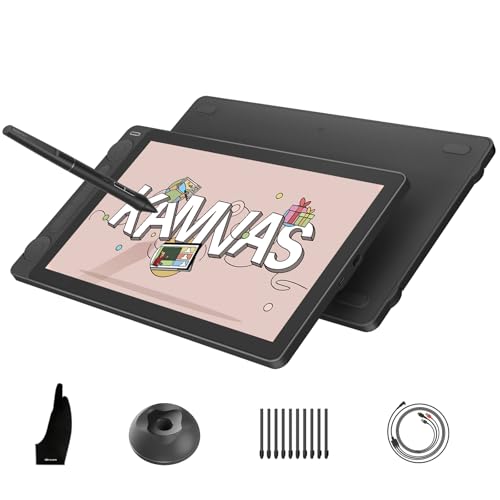
Best Pen Display for Color Work – HUION Kamvas 13 Gen 3
The HUION Kamvas 13 Gen 3 is a strong drawing tablet for artists who want a full-laminated screen, accurate color, and extensive shortcut controls. Its 13.3-inch display uses Canvas Glass 2.0, while the PenTech 4.0 stylus provides 16,384 pressure levels for detailed linework and shading.
Best For: Digital artists, illustrators, animators, and designers who already work with a compatible computer or laptop.
Pros:
- Full-laminated, anti-glare glass offers a paper-textured drawing experience.
- 16,384 pressure levels and low initial activation force support precise strokes.
- Wide color coverage and factory calibration target color-accurate artwork.
- Two dials and five press keys provide convenient workflow controls.
Cons:
- It is not standalone and must connect to a computer or laptop.
- Its 865-gram weight is less convenient than a compact pen tablet for travel.
Choose the Kamvas 13 Gen 3 when screen-based drawing and color fidelity matter more than standalone portability. Its connection requirements are a limitation, but the display, pen performance, and controls make it well suited to a computer-based studio.
Best Professional Shortcut Controls – Wacom Intuos Pro Medium
The Wacom Intuos Pro Medium is a drawing tablet for artists who prefer working on a desk while viewing their canvas on a computer monitor. It pairs the customizable Pro Pen 3 with 10 ExpressKeys, two mechanical dials, and Bluetooth connectivity for a streamlined professional workflow.
Best For: Professional animators, designers, photographers, video creators, and 3D artists using Mac or PC software.
Pros:
- Pro Pen 3 offers 8,192 pressure levels, tilt support, and lag-free tracking.
- Ten ExpressKeys and two dials speed up frequently used commands.
- Bluetooth enables wireless use with multiple computers.
- Medium active area suits wide or multiple-monitor setups while keeping a compact footprint.
Cons:
- It has no built-in display, so artists must look at a connected monitor.
- Compatibility is focused on Windows and macOS rather than mobile operating systems.
The Intuos Pro Medium is the productivity-focused option in this roundup. Its customizable controls and adjustable pen ergonomics make it especially appealing to experienced artists who want efficient, monitor-based work rather than a screen tablet.
Best Beginner Value – XPPen Deco 01 V3
The XPPen Deco 01 V3 is an accessible drawing tablet for artists who want a large working area, simple computer connectivity, and a battery-free stylus. Its 10-by-6.25-inch surface, 16,384 pressure levels, and eight customizable keys provide useful room and controls for learning digital art.
Best For: Beginners and amateur artists who want an affordable, portable tablet compatible with computers, Android devices, and major creative software.
Pros:
- Large 10-by-6.25-inch drawing area leaves room for broad strokes.
- Battery-free stylus supports 16,384 pressure levels and up to 60 degrees of tilt.
- Eight customizable keys work for both right- and left-handed users.
- Supports Windows, macOS, Android, Chrome OS, Linux, and popular art software.
Cons:
- It has no built-in screen and requires a compatible connected device.
- Android use requires suitable USB support and the XP-Pen Tools app for aspect-ratio mapping.
The Deco 01 V3 offers a generous workspace and broad compatibility without adding pen charging to the setup. It is a practical starting point for beginners who are comfortable drawing while viewing their work on a separate screen.
Premium Screen Pick – Wacom Cintiq 16
The Wacom Cintiq 16 is a strong drawing tablet for artists who want to work directly on a spacious, high-resolution display. Its 2.5K IPS screen, wide color coverage, and Pro Pen 3 are suited to detailed illustration, animation, comics, and design work.
Best For: Serious digital artists, illustrators, animators, and designers who prefer a pen-display workflow.
Pros:
- 16-inch 2560 x 1600 IPS display with anti-glare glass
- Pro Pen 3 offers 8192 pressure levels and tilt support
- 99% DCI-P3 and 100% sRGB color coverage
- Built-in fold-out legs provide a 20-degree working angle
Cons:
- Requires a compatible Windows or Mac computer
- Computers without DisplayPort Alt Mode or Thunderbolt 3/4 may need additional cables
- Relatively heavy at 4.5 pounds
Choose this model when display quality and precise pen response matter more than portability. It is a capable centerpiece for a desktop creative setup, provided your computer supports the required connection.
Portable Standalone Pick – RubensTab T11 Pro
The RubensTab T11 Pro stands out among drawing tablet for artists options because it works independently without a computer. Its Android 12 platform, built-in drawing apps, Full HD screen, and rechargeable battery make it useful for creating away from a desk.
Best For: Artists, students, and teachers who want a self-contained tablet for drawing, notes, and travel.
Pros:
- Standalone design requires no external computer
- 10.1-inch 1920 x 1200 Full HD IPS display
- Built-in 5800mAh battery provides up to 5 hours of use
- Includes pre-installed drawing apps and an adjustable stand case
Cons:
- Listed pressure sensitivity is 1024 levels
- Battery life is limited to up to 5 hours of continuous use
- Runs on Android 12 rather than a desktop operating system
This is a practical choice for artists prioritizing mobility and simplicity. It is less focused on desktop-grade specifications, but its independent operation and included software reduce the need for extra equipment.
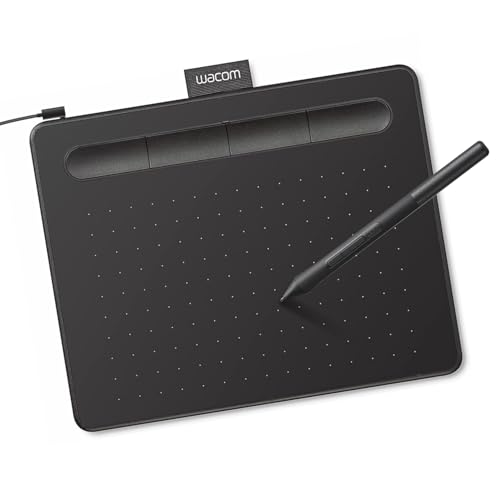
Compact Value Pick – Wacom Intuos Small
The Wacom Intuos Small is a compact drawing tablet for artists who are comfortable drawing on a surface while viewing their work on a computer. Its battery-free pen, programmable ExpressKeys, broad software compatibility, and small footprint suit beginners, students, and creators with limited desk space.
Best For: Students, beginners, teachers, and digital artists seeking a lightweight tablet for drawing, photo editing, and design.
Pros:
- Battery-free EMR pen with a natural pen-on-paper feel
- 4096 pressure levels for controlled strokes
- Four ExpressKeys provide shortcut access
- Works with Windows, Mac, Android, and Chromebook
Cons:
- Small 6 x 3.7-inch active area
- Has no built-in display
- Uses a wired USB-A connection
This model keeps the setup straightforward and portable while retaining Wacom’s pen technology. It is a sensible entry point for computer-based creative work, though artists wanting to draw directly on the image should consider a pen display instead.
Best for Color-Accurate Workflows – XPPen Artist 15.6 Pro V2
The XPPen Artist 15.6 Pro V2 is a strong drawing tablet for artists who want a large, color-focused display for detailed illustration, design, and photo work. Its 16K-pressure stylus, laminated anti-glare screen, Red Dial, and customizable keys are designed to support precise strokes and efficient editing. Note that it must connect to a computer or laptop.
Best For: Artists and designers who prioritize a spacious screen, accurate color, and customizable controls.
Pros:
- 16,384 pressure levels support precise, smooth lines.
- 15.4-inch full-laminated anti-glare display helps reduce parallax.
- Broad color coverage, including 99% sRGB and 96% Adobe RGB.
- Red Dial and eight customizable shortcut keys streamline workflows.
Cons:
- Requires connection to a computer or laptop; it is not standalone.
- The larger 15.4-inch format may be less convenient for portable setups.
Choose this model if screen size and color fidelity matter more than minimal desk space. The included foldable stand can also support a more comfortable working angle during longer sessions.
Best for Flexible Creative Setups – XPPen Artist Pro 14 Gen2
The XPPen Artist Pro 14 Gen2 is a versatile drawing tablet for artists who want a compact pen display with strong color coverage and multiple working modes. Its 14-inch laminated screen, 16K-pressure stylus, wireless shortcut remote, and foldable stand suit illustration, animation, and 3D work. It must connect to a computer or compatible device and is not standalone.
Best For: Creators who want a portable-size display with flexible shortcuts, ergonomic features, and broad software compatibility.
Pros:
- 16,384 pressure levels and 60-degree tilt support nuanced strokes and shading.
- Full-laminated, anti-glare 14-inch display helps minimize parallax.
- 99% sRGB coverage and ΔE < 2.2 color accuracy support detailed work.
- Includes a foldable stand, wireless shortcut remote, and wrist rest.
Cons:
- Requires a computer or compatible device and is not a standalone tablet.
- The smaller display may provide less workspace than larger pen displays.
A notable advantage is its one-click switch to tablet mode, which turns off the screen for a traditional pen-tablet workflow. That flexibility makes it appealing for artists who alternate between direct-on-screen drawing and a lower-distraction setup.
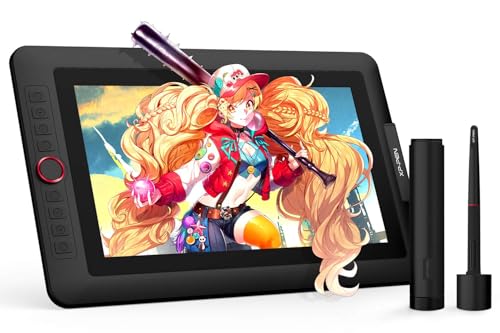
Best Compact Choice for Natural Shading – XPPen Artist 13.3 Pro V2
The XPPen Artist 13.3 Pro V2 is a compact drawing tablet for artists who want direct-on-screen drawing, tilt support, and physical workflow controls without moving to a larger display. Its fully laminated FHD screen, battery-free 16K stylus, Red Dial, and eight shortcut keys cover everyday illustration and creative software tasks. It requires a computer or laptop.
Best For: Students, hobbyists, illustrators, and other creators seeking a compact pen display with useful controls.
Pros:
- 60-degree tilt support helps create more natural shading and transitions.
- Fully laminated display minimizes the gap between nib and cursor.
- Battery-free stylus offers 16,384 pressure levels and two pen shortcuts.
- Red Dial and eight customizable keys support efficient editing.
Cons:
- Must connect to a computer or laptop; it is not standalone.
- The 13.3-inch display offers less workspace than larger alternatives.
This model is a practical fit when desk space and portability matter, while still retaining display-based drawing and hardware controls. Its compatibility with Windows, macOS, Chrome OS, and Linux also gives it a broad range of setup options.
How We Picked the Best Drawing Tablet for Artists
We compared these tablets by the features that most affect everyday drawing: stylus responsiveness, pressure sensitivity, surface feel, display quality where applicable, shortcut controls, connectivity, compatibility, portability, and price. We also considered whether each model suits beginners, professional illustrators, photographers, animators, or artists who need a self-contained mobile setup.
A pen display can make the transition from paper to digital drawing feel more direct, but it usually requires a computer and takes up more desk space. A traditional graphics tablet has no built-in screen, often costs less, and can be more ergonomic for long sessions. Standalone models offer the most flexibility, but their operating systems, battery life, storage, and app support matter more.
Quick Comparison
| Tablet type | Best for | Main advantage | Potential trade-off |
|---|---|---|---|
| Standalone tablet | Portable artists and mobile workflows | Works without a separate computer | Higher cost and device-specific software limits |
| Pen display | Illustrators and digital painters | Draw directly on the screen | Usually needs a computer and desk setup |
| Graphics tablet | Beginners, designers, and budget buyers | Affordable and compact | Requires hand-eye coordination |
Key Buying Factors for a Drawing Tablet for Artists
Screen and Drawing Surface
For a pen display, look at resolution, color performance, viewing angles, glare control, and whether the screen is fully laminated. A laminated display can reduce the visible gap between the pen tip and cursor. For screenless tablets, consider the active area and surface texture instead; a larger working area generally feels better for broad strokes.
Stylus Performance
Pressure sensitivity, tilt recognition, pen accuracy, and consistent tracking are more important than headline specifications alone. Battery-free pens reduce maintenance and avoid interruptions during long sessions. Check the included pen generation and whether replacement nibs are easy to find.
Controls, Compatibility, and Connectivity
Express keys and a dial can speed up zooming, brush sizing, undoing, and canvas rotation. Confirm support for your operating system and preferred applications before buying. USB-C is convenient, but some displays may need additional cables or power. Bluetooth can reduce cable clutter on compatible graphics tablets.
Size, Portability, and Ergonomics
A 13- to 16-inch display is a practical middle ground for many artists, while a medium graphics tablet offers useful space without dominating a desk. If you travel frequently, prioritize weight, standalone operation, protective accessories, and battery performance. For home studios, also budget for a stable stand if one is not included.
Who Should Buy Which Drawing Tablet for Artists?
Choose a Standalone Model If…
You want to sketch away from your desk, work in different locations, or avoid connecting to a computer. These tablets are especially useful for students, traveling creatives, and artists who value an all-in-one setup.
Choose a Pen Display If…
You want the most direct drawing experience and already use a capable Windows or Mac computer. Pen displays are a strong fit for illustrators, comic artists, concept artists, and digital painters who spend long sessions working on a large canvas.
Choose a Graphics Tablet If…
You want reliable pen input at a lower price, have limited desk space, or prefer a screenless setup. Small models suit casual work and beginners, while medium tablets offer more comfortable control for detailed illustration and design.