The best drawing tablet with shortcut keys can make digital art and editing feel faster by putting frequently used commands within easy reach. Custom buttons can reduce keyboard dependence while pressure-sensitive pens provide more natural control.
This roundup compares 10 options across wired and wireless designs, active-area sizes, shortcut layouts, pressure levels, and compatibility features so you can choose a tablet that fits your workflow and budget.
Best 10 Drawing Tablet with Shortcut Keys Picks for 2026
Best Overall

- 16,384 pressure levels with 60-degree tilt
- Eight customizable keys and a large 10 x 6.25-inch area
- Compatible with Windows, macOS, Android, Chrome OS, and Linux
Best For: Beginners and digital artists wanting a spacious, versatile tablet
Best Shortcut Add-On

- 18 programmable keys and a configurable dial
- Bluetooth 5.0 with up to 70 hours of battery life
- Works with Windows, macOS, and other brands' tablets
Best For: Creators who need extra shortcuts beside an existing tablet
Best Touch Controls

- Gesture pad, touch pad, and four customizable touch keys
- 10 x 6-inch area with 8,192 pressure levels
- Battery-free pen and Windows, macOS, Android, and Linux support
Best For: Users who prefer gesture-based shortcuts and a spacious work area
Best Wireless Tablet

- Bluetooth 5.0 wireless connection
- Eight customizable shortcut keys with tactile bumps
- 8,192 pressure levels and 60-degree tilt support
Best For: Portable creative work, teaching, and cable-free setups
Flexible Workflow Pick

- 12 customizable shortcut keys
- Large 10 x 6-inch active area
- Battery-free 8192-pressure pen with tilt
Best For: Artists and students needing a spacious, programmable tablet
Beginner-Friendly Value

- 12 customizable shortcut keys
- 10 x 6-inch textured drawing surface
- 8192-pressure, battery-free pen with tilt
Best For: Beginners and online teachers wanting a large programmable tablet
Large-Format Control

- 10 x 6-inch drawing area
- 12 soft keys and a quick dial
- 16,384-level battery-free stylus
Best For: Beginners and creators wanting extensive controls and a spacious wired workspace
Balanced Workflow

- 10 x 6.25-inch paper-like surface
- Eight customizable shortcut keys
- USB-C and broad system compatibility
Best For: Artists and designers wanting a spacious, easy-to-connect tablet
Wireless Mobility
- Bluetooth 5.0 with up to 13 hours
- Eight customizable shortcut keys
- Mobile mapping for Android creation
Best For: Portable creators who want wireless and wired flexibility
Best Overall – XP-Pen Deco 01 V3
The XP-Pen Deco 01 V3 is a strong drawing tablet with shortcut keys for artists who want a roomy workspace, high pen sensitivity, and broad device compatibility. Its eight customizable keys, battery-free stylus, and 10 x 6.25-inch active area support drawing, teaching, photo editing, and animation workflows.
Best For: Beginners, students, and digital artists who want a large, versatile tablet with extensive compatibility.
Pros:
- Offers 16,384 pressure levels and 60-degree tilt support for nuanced strokes and shading.
- Includes eight programmable shortcut keys and an ambidextrous layout.
- Works with Windows, macOS, Android, Chrome OS, and Linux.
- Includes a battery-free stylus, replacement nibs, glove, stand, and protective film.
Cons:
- Requires wired USB connectivity rather than built-in wireless operation.
- The larger active area may be less convenient for users seeking maximum portability.
With its generous workspace and unusually high pressure sensitivity, the Deco 01 V3 is a well-rounded choice for users who want room to grow without giving up shortcut controls.
Best Shortcut Add-On – HUION Keydial Mini
The HUION Keydial Mini is a shortcut-focused companion for a drawing tablet with shortcut keys—or for a tablet that lacks enough controls. It adds 18 programmable buttons, a multi-function dial, Bluetooth 5.0, and one-handed operation for editing and creative software.
Best For: Digital artists, photographers, and video editors who need more accessible shortcuts beside an existing tablet.
Pros:
- Provides 18 customizable keys plus a dial that can control functions such as brush size and timeline navigation.
- Bluetooth 5.0 offers cable-free use within a stated 10-meter range.
- Supports Windows and macOS and works with tablets from other brands.
- Offers up to 70 hours of battery life and ambidextrous one-handed use.
Cons:
- It is a separate keypad, not a drawing tablet or stylus input device.
- Shortcut customization requires compatible software and the Huion driver.
If your current tablet has limited controls, the Keydial Mini can expand your workflow without replacing the tablet itself. Its dial is particularly useful for frequently adjusted settings.
Best Touch Controls – VEIKK A30
The VEIKK A30 is a drawing tablet with shortcut keys that replaces traditional buttons with four customizable touch keys, a gesture pad, and a touch pad. It pairs these controls with a 10 x 6-inch work area and a battery-free pen for drawing, teaching, and general creative work.
Best For: Students and artists who prefer gesture-based controls and a spacious, ambidextrous drawing surface.
Pros:
- Gesture and touch controls support actions such as zooming, scrolling, and brush switching.
- Includes four customizable touch keys and 8,192 pressure levels.
- Battery-free stylus needs no charging.
- Supports Windows, macOS, Android, and Linux, with included mobile OTG accessories.
Cons:
- Provides fewer physical shortcut keys than some competing tablets.
- Uses a wired Type-C connection rather than Bluetooth.
- The touch-based controls may appeal less to users who prefer tactile buttons.
The A30 stands out for a clean, modern control layout. Its touch and gesture features are a practical fit for users who want quick navigation without filling the tablet with physical keys.
Best Wireless Tablet – XP-Pen Deco MW
The XP-Pen Deco MW is a drawing tablet with shortcut keys for creators who want a wireless setup. Its Bluetooth 5.0 connection, eight customizable keys, battery-free X3 stylus, and 8 x 5-inch active area provide a portable balance for drawing and design work.
Best For: Students, teachers, and artists who want a cable-free tablet that works across several operating systems.
Pros:
- Bluetooth 5.0 enables wireless use and a less cluttered workspace.
- Eight customizable keys include tactile bumps for easier identification.
- The battery-free stylus offers 8,192 pressure levels and 60-degree tilt support.
- Compatible with Windows, macOS, Android, Chrome OS, Linux, and major creative applications.
Cons:
- Its 8 x 5-inch active area is smaller than the Deco 01 V3’s workspace.
- Wireless operation depends on the tablet’s Bluetooth setup and charging needs.
For creators who value mobility, the Deco MW combines useful shortcut controls with wireless freedom. Its mid-size surface is suited to everyday drawing, online teaching, and portable creative work.
Flexible Workflow Pick – VEIKK A15 10×6 Drawing Tablet
The VEIKK A15 is a practical drawing tablet with shortcut keys for artists who want a spacious work area and customizable controls. Its 10 x 6-inch active surface, battery-free pen, and broad Windows, Mac, Linux, and Android compatibility make it suitable for drawing, design, and online teaching.
Best For: Artists, students, and designers who want a large, ambidextrous tablet with programmable shortcuts.
Pros:
- 12 programmable shortcut keys can be tailored to different software and workflows.
- 10 x 6-inch active area provides room for broad strokes and detailed work.
- Battery-free pen includes 8192 pressure levels, tilt support, two side buttons, and 20 replacement nibs.
- Supports Windows, macOS, Linux, and Android 6.0+ devices, excluding Samsung phones.
Cons:
- Android connection requires an OTG adapter, which is not included.
- It has no built-in display, so you draw while viewing a connected screen.
The A15 stands out when customizable shortcut keys and a roomy drawing surface matter more than portability. Its Type-C connection, left/right-hand switching, and included replacement nibs add practical convenience for regular use.
Shortcut Control Center – XENCELABS Quick Keys
The XENCELABS Quick Keys is a dedicated shortcut controller rather than a drawing tablet, making it a useful companion for a drawing tablet with shortcut keys or pen display. Its OLED screen, programmable key sets, and rotary dial help reduce menu navigation during creative work.
Best For: Digital artists, video editors, photographers, and other creators who already use a tablet or pen display.
Pros:
- Provides up to 40 programmable shortcut commands across five key sets.
- OLED display shows active shortcuts without requiring overlay software.
- Rotary dial offers programmable control for zoom, canvas rotation, brush size, and timelines.
- Supports Windows 7+, macOS 10.13+, and Linux through wireless or USB connectivity.
Cons:
- It is a shortcut pad, not a standalone drawing tablet or pen input device.
- Not supported on iOS or Android devices.
- Does not support macro commands, scripts, plugins, or multitasking automation.
Choose the Quick Keys when fast, visible command access is your priority. It can complement an existing drawing setup especially well, but buyers seeking an all-in-one tablet should look elsewhere.
Beginner-Friendly Value – IMAGE 10×6 Drawing Tablet
The IMAGE 10×6 is a budget-oriented drawing tablet with shortcut keys for beginners and digital artists who want a generous work surface. It combines a battery-free 8192-pressure stylus and tilt support with 12 customizable shortcut keys, plus 10 multimedia keys for Windows users.
Best For: Beginners, online teachers, and artists looking for a large tablet with programmable controls.
Pros:
- Large 10 x 6-inch textured surface supports spacious, low-lag drawing.
- Battery-free stylus offers 8192 pressure levels and 60-degree tilt functionality.
- Includes 12 customizable shortcut keys for creative software.
- Works with Windows, macOS, and Android devices, with broad creative-software compatibility.
Cons:
- Ten multimedia keys are compatible with Windows only.
- It is not compatible with iPhone, iPad, or Chromebook.
- Mac users must grant Accessibility, Input Monitoring, and Full Disk Access permissions during setup.
The IMAGE tablet offers a useful combination of size, pressure sensitivity, tilt control, and shortcut access for its intended audience. Check your operating system requirements first, particularly if you plan to use the extra multimedia keys or connect a Mac.
Large-Format Control – VEIKK A15 Pro
The VEIKK A15 Pro is a drawing tablet with shortcut keys aimed at creators who want a spacious work area and extensive controls. Its 10 x 6-inch active surface, 12 customizable soft keys, and quick dial provide room for drawing while keeping common commands accessible.
Best For: Beginners, digital artists, photographers, teachers, students, and home workers who prefer a large wired tablet with many controls.
Pros:
- Large 10 x 6-inch active area supports broad drawing gestures.
- Offers 12 customizable soft keys plus a quick dial for brush and canvas control.
- Battery-free stylus provides 16,384 pressure levels, 60-degree tilt support, and a pen-to-eraser toggle.
- Works with Windows, macOS, Linux, ChromeOS, Android, and many popular creative applications.
Cons:
- Uses a wired USB connection rather than wireless connectivity.
- The larger surface may take more desk space than compact alternatives.
The A15 Pro stands out when shortcut capacity and drawing space matter more than portability. Its broad compatibility and included spare nibs also make it a practical first tablet for a range of creative and teaching tasks.
Balanced Workflow – UGEE M808
The UGEE M808 is a drawing tablet with shortcut keys that balances a roomy 10 x 6.25-inch surface with a straightforward control layout. Its eight customizable keys, USB-C connection, and paper-like surface are suited to drawing, sketching, image editing, and 3D design.
Best For: Artists, designers, teachers, and Android or computer users seeking a large, simple-to-connect tablet.
Pros:
- 10 x 6.25-inch work surface offers generous room for creative projects.
- Eight tactile shortcut keys can be customized for frequently used tools.
- Passive stylus includes 8,192 pressure levels, 60-degree tilt recognition, and two programmable pen buttons.
- USB-C connectivity and support for Windows, macOS, Android, Linux, and ChromeOS add flexibility.
Cons:
- Provides fewer shortcut keys than some larger-control alternatives.
- Its 8,192 pressure levels are lower than the highest-rated sensitivity option in this roundup.
The M808 is a sensible middle ground for users who want a substantial drawing area without an overly complex control scheme. Its broad operating-system support makes it useful across desktop and compatible Android setups.
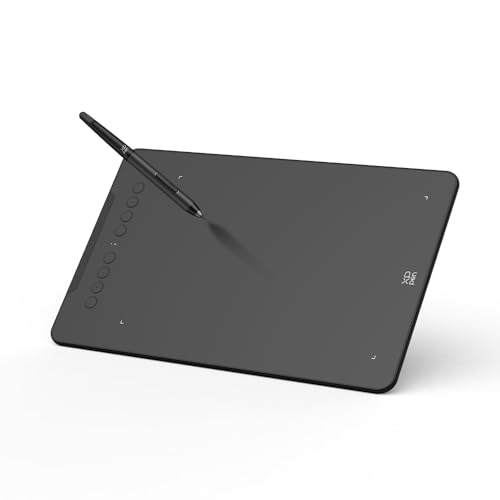
Wireless Mobility – XPPen Deco mini7W V2
The XPPen Deco mini7W V2 is a compact drawing tablet with shortcut keys for creators who value wireless flexibility. Bluetooth 5.0, eight customizable keys, a battery-free stylus, and mobile mapping support make it suitable for desktop, Android, and portable creative workflows.
Best For: Mobile creators, students, digital artists, remote workers, and anyone who wants a compact tablet with wireless or wired operation.
Pros:
- Bluetooth 5.0 enables cable-free use, with up to 13 hours of battery life.
- Eight customizable efficiency keys support drawing, photo editing, and note-taking workflows.
- Battery-free stylus offers 16,384 pressure levels and 60-degree tilt support.
- Mobile mapping helps match the active area to an Android screen ratio and reduce distortion.
Cons:
- Its 7 x 4.37-inch active area is smaller than the other tablets listed here.
- Wireless use requires charging the tablet.
- iOS support is limited to use through ibis Paint.
The Deco mini7W V2 is the most portable choice in this group, particularly for Android users and clutter-free workspaces. Choose it when wireless convenience and mobile compatibility outweigh the benefits of a larger drawing area.
How We Picked the Best Drawing Tablet with Shortcut Keys
We focused on tablets and shortcut-control accessories that offer practical customization for drawing, photo editing, animation, note-taking, and other creative workflows. Our comparison considers shortcut count, key or dial placement, active drawing area, pen technology, pressure sensitivity, connection options, operating-system compatibility, and portability.
Because specifications vary widely, we treated more shortcut buttons as useful only when they are easy to reach and configure. A larger work surface may suit detailed illustration, while a compact wireless model can be better for travel or smaller desks.
Quick Comparison
- Most shortcut flexibility: Look for models with eight or more programmable buttons, layered controls, or a dial.
- Best for portability: Compact wireless tablets are easier to carry and can reduce cable clutter.
- Best for larger gestures: A 10-by-6-inch-class active area gives illustrators more room for broad strokes.
- Best for workflow control: Dedicated keypads such as the HUION Keydial Mini or XENCELABS Quick Keys can complement an existing tablet.
- Best for pen convenience: Battery-free styluses eliminate charging and usually provide a lighter, simpler setup.
Key Buying Factors for a Drawing Tablet with Shortcut Keys
Shortcut Layout and Customization
Count the buttons you will realistically use, then check whether shortcuts can be assigned per application. Dials, touch controls, and programmable keypads can be especially useful for zooming, brush sizing, scrolling, rotating a canvas, or switching tools.
Active Area and Ergonomics
The active area determines how much room you have for pen movement. A larger surface can feel more natural for detailed work, but compact tablets take less desk space. Make sure the buttons are positioned where your drawing hand can reach them comfortably.
Pen Performance
Pressure sensitivity helps vary line weight and opacity, but a high pressure rating alone does not guarantee a better experience. Also consider tilt support, pen balance, nib availability, and whether the stylus is battery-free.
Connectivity and Compatibility
USB-C is convenient for wired setups, while Bluetooth or wireless receivers offer greater freedom. Confirm compatibility with your operating system and preferred software before buying, especially if you use macOS, ChromeOS, Linux, or a specialized creative application.
Size, Build, and Accessories
Check the tablet’s footprint, cable placement, surface texture, included adapters, pen holder, replacement nibs, and driver software. These details affect daily comfort more than headline specifications.
Who Should Buy Which Drawing Tablet with Shortcut Keys?
Beginners and students should prioritize affordable models with a comfortable active area, straightforward drivers, and enough shortcuts for common commands. Digital illustrators may prefer a larger 10-by-6-inch-class tablet with a battery-free pen and many programmable keys.
Traveling creators should consider compact wireless options, while editors and power users may benefit from a dedicated shortcut keypad with a dial alongside their current pen tablet. If you frequently switch between applications, prioritize per-program profiles and reliable customization over maximum pressure numbers.