The best drawing tablets make digital illustration, photo editing, animation, and handwritten notes feel more natural. This roundup compares 10 options across pen displays, screenless graphics tablets, and standalone models.
Whether you want a compact beginner tablet, a color-accurate display, or a portable device that works without a computer, the right choice depends on your workflow, workspace, and budget.
Best 10 Drawing Tablets Picks for 2026
Best Premium Screen Pick
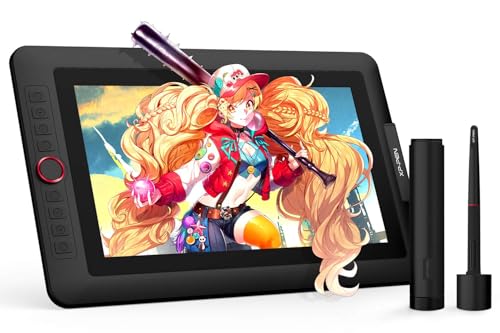
- Fully laminated 13.3-inch FHD display
- 16K pressure levels with 60° tilt
- Dial plus eight customizable shortcut keys
Best For: Artists wanting a compact, feature-rich pen display
Best Compact Starter Display

- 11.6-inch FHD IPS screen with 100% sRGB
- Battery-free pen with digital eraser
- Six keys and programmable touch bar
Best For: Students, teachers, and beginner digital artists
Best Large Color Display
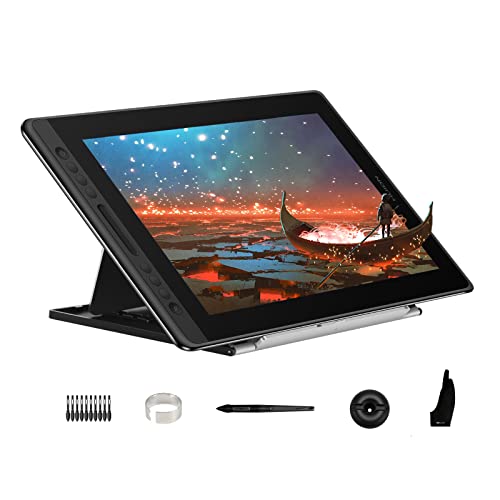
- 15.6-inch fully laminated anti-glare display
- 120% sRGB coverage with 1000:1 contrast
- Adjustable stand, touch bar, and six keys
Best For: Creators who want a roomy, color-focused pen display
Best Simple Drawing Pad
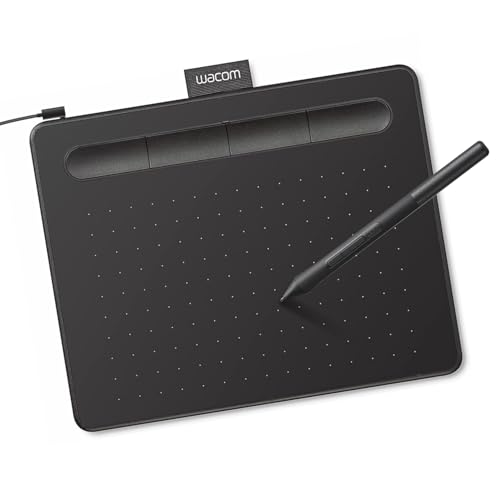
- Compact 6-by-3.7-inch active area
- Battery-free EMR pen with 4,096 levels
- Four ExpressKeys plus software access
Best For: Beginners and creators using a separate computer monitor
Best for Color-Critical Creators
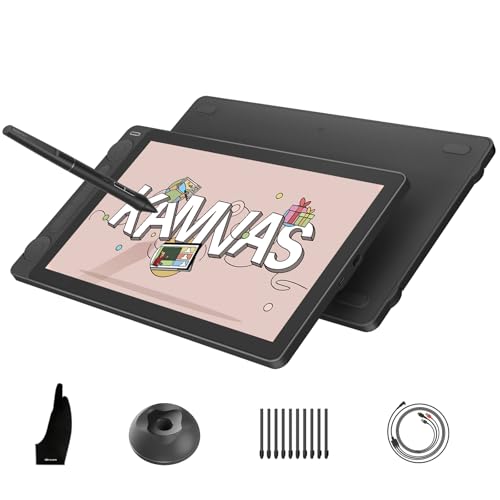
- 13.3-inch full-laminated display
- 16,384 pressure levels
- Factory-calibrated color accuracy
Best For: Artists and designers who want an on-screen drawing experience
Best Wireless Workhorse

- Bluetooth or USB-A connectivity
- Battery-free pressure-sensitive pen
- Four customizable ExpressKeys
Best For: Students and creators who want a dependable screenless tablet
Best Beginner Value

- Large 10-by-6.25-inch work area
- 16,384-level battery-free stylus
- Eight customizable shortcut keys
Best For: Beginners seeking a spacious, portable screenless tablet
Best Standalone Pick

- Standalone 10.1-inch Full HD drawing tablet
- Battery-free pen with multi-touch controls
- Built-in battery and pre-installed creative apps
Best For: Portable drawing without a computer
Best Compact Value
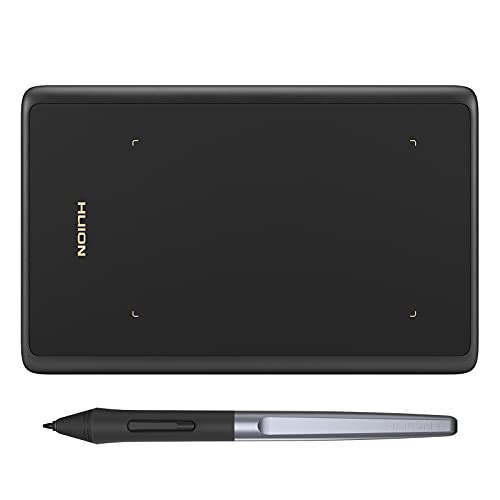
- Slim, lightweight design for travel or small desks
- Battery-free pen with 8192 pressure levels
- Compatible with computers, Android, and major art software
Best For: Beginners and mobile computer-based work
Best Beginner Bundle

- Standalone 10-inch laminated drawing display
- 4096-level active pen with beginner tutorials
- Includes creative apps and useful bonus accessories
Best For: New artists and students learning digital drawing
Best Premium Screen Pick – XPPen Artist 13.3 Pro V2
The XPPen Artist 13.3 Pro V2 is a strong choice among drawing tablets for artists who want a fully laminated, color-rich screen and a customizable workflow. Its 13.3-inch FHD display, 16,384 pressure levels, tilt support, dial, and shortcut keys provide a capable setup for illustration, animation, photo editing, and 3D work. It must be connected to a computer or laptop.
Best For: Artists and designers who want a compact pen display with advanced pen performance and convenient controls.
Pros:
- Fully laminated 13.3-inch display helps minimize parallax.
- 16,384 pressure levels, 60-degree tilt, and a battery-free stylus support natural strokes.
- Red dial and eight customizable shortcut keys streamline common actions.
- Supports Windows, macOS, Chrome OS, Linux, and major creative software.
Cons:
- Requires a computer or laptop to operate.
- Its smaller screen may feel limiting for users who prefer a large canvas.
Choose this model if display quality, low-parallax drawing, and flexible controls matter more than standalone operation. The included cables, stand, pen holder, and replacement nibs make it a well-equipped option for a desktop creative setup.
Best Compact Starter Display – XP-PEN Artist12
The XP-PEN Artist12 is one of the more approachable drawing tablets for beginners, students, teachers, and remote workers who want to draw directly on a screen. Its 11.6-inch 1920×1080 display, six customizable keys, touch bar, and battery-free pen cover digital art, annotation, and online instruction. A computer connection is required, with HDMI and USB-A ports or suitable adapters.
Best For: Students, educators, beginners, and remote professionals who need a compact screen-based drawing setup.
Pros:
- FHD IPS display offers 100% sRGB coverage and an anti-reflective protector.
- Battery-free pen includes an eraser and comes with replacement nibs.
- Six shortcut keys and a programmable touch bar support efficient workflows.
- Works with common creative and video-conferencing software.
Cons:
- Must be connected to a computer to work.
- Requires HDMI and USB-A ports, or additional adapters.
- Its 11.6-inch workspace is less spacious than larger pen displays.
The Artist12 makes sense when portability, straightforward controls, and educational features are priorities. It offers useful screen-based drawing capabilities without the larger footprint of a 15.6-inch display.
Best Large Color Display – HUION Kamvas Pro 16
The HUION Kamvas Pro 16 is a compelling option among drawing tablets for creators who want a larger working area and vivid color reproduction. Its 15.6-inch fully laminated 1080p display provides 120% sRGB coverage, while the anti-glare glass, adjustable stand, touch bar, and six express keys support extended drawing sessions. Like other pen displays, it requires a connected computer or laptop.
Best For: Illustrators, designers, and digital painters who value a roomy canvas, strong color coverage, and ergonomic positioning.
Pros:
- 15.6-inch fully laminated display delivers a spacious drawing area.
- 120% sRGB color gamut and 1000:1 contrast ratio support vivid, detailed visuals.
- Battery-free pen provides 8,192 pressure levels, 60-degree tilt, and low-lag tracking.
- Adjustable stand, touch bar, and six express keys improve comfort and workflow.
Cons:
- Not a standalone device; it needs a computer or laptop.
- The larger display takes up more desk space than compact alternatives.
- Compatibility is listed for Windows, macOS, and Linux, not mobile platforms generally.
This model is a good fit when workspace and color performance are more important than a small footprint. The included stand and anti-glare glass also make it practical for longer desktop sessions.
Best Simple Drawing Pad – Wacom Intuos Small
The Wacom Intuos Small is a compact, screenless choice among drawing tablets for users who prefer a familiar pen-on-paper workflow. Its battery-free EMR pen, four ExpressKeys, USB-A connection, and compatibility with Windows, Mac, and Chromebook make it suitable for drawing, photo editing, design, and document markup. Because it has no built-in display, you draw while viewing the work on your connected computer.
Best For: Students, teachers, beginners, and creators who want a small, reliable graphics tablet for computer-based work.
Pros:
- Compact design and 6-by-3.7-inch active area suit smaller desks.
- Battery-free pen uses EMR technology for a pen-on-paper feel.
- Four ExpressKeys provide quick access to shortcuts.
- Includes creative software access and online training after registration.
Cons:
- There is no built-in screen for direct-on-display drawing.
- The pen offers 4,096 pressure levels, fewer than the screen-based models here.
- Uses a wired USB-A connection.
The Intuos Small is the practical pick for anyone who values simplicity, portability, and Wacom’s established pen technology. It is especially suitable when a separate monitor is already part of the workspace.
Best for Color-Critical Creators – HUION Kamvas 13 (Gen 3)
If you want drawing tablets with a built-in display, the HUION Kamvas 13 (Gen 3) offers a paper-textured, full-laminated canvas and strong color coverage. Keep in mind that it is a pen display, not a standalone computer: it must connect to a compatible computer, laptop, or supported Android device.
Best For: Artists, designers, animators, and students who want an on-screen drawing experience with precise color control and customizable shortcuts.
Pros:
- 13.3-inch full-laminated Canvas Glass 2.0 helps reduce glare and image sparkle.
- PenTech 4.0 provides 16,384 pressure levels, tilt support, and low initial activation force.
- 99% sRGB/Rec.709 and 90% Adobe RGB coverage, with factory calibration to ΔE<1.5.
- Two dials and five press keys provide convenient workflow controls.
Cons:
- Requires connection to a computer, laptop, or compatible Android device.
- The 13.3-inch display may feel compact for users who prefer a larger workspace.
The Kamvas 13 (Gen 3) is a capable choice when screen-based drawing, accurate color, and portable design matter most. Its dual dials and calibrated display make it especially appealing for detail-oriented creative work.
Best Wireless Workhorse – Wacom Intuos Medium
Among drawing tablets, the Wacom Intuos Medium is a straightforward screenless option for users who value reliable pen control and flexible connectivity. Its battery-free pen works with creative software on compatible Mac, Windows, and Chromebook setups.
Best For: Students, teachers, and creators who want a medium-sized wireless tablet for drawing, photo editing, design, or document markup.
Pros:
- Battery-free EMR pen provides pen-on-paper-style control without charging.
- Bluetooth and USB-A connectivity support wireless or wired use.
- Four ExpressKeys provide quick access to shortcuts.
- Software and online training are included after product registration.
Cons:
- It has a 4096-level pressure-sensitive pen rather than the higher sensitivity offered by some newer models.
- Because it has no built-in screen, you draw while viewing the connected computer display.
The Intuos Medium remains a practical pick for everyday digital creativity. It balances a useful active area, wireless convenience, and simple controls without requiring a display-style setup.
Best Beginner Value – XPPen Deco 01 V3
For beginners comparing drawing tablets, the XPPen Deco 01 V3 combines a generous 10-by-6.25-inch work area with a battery-free stylus and beginner-friendly shortcut controls. It also supports Android devices, making it a flexible option for practice, sketching, and note-taking.
Best For: Beginner and amateur artists who want a spacious, portable screenless tablet with many customizable keys.
Pros:
- 16,384 pressure levels and up to 60 degrees of tilt support smooth lines and shading.
- Eight customizable keys support both right- and left-handed users.
- USB-C connectivity and included adapters simplify setup across compatible devices.
- Thin 8 mm design and included accessories make it convenient to carry.
Cons:
- It does not include a built-in display, so artwork appears on the connected device.
- Android compatibility requires Android 10 or later and benefits from the XPPen Tools app.
The Deco 01 V3 is a strong starting point for digital art, especially if you want a larger drawing surface without moving to a display tablet. Its high-pressure sensitivity and eight shortcut keys also leave room to grow as your workflow develops.
Best Standalone Pick – RubensTab T11 Pro
The RubensTab T11 Pro is a practical choice among drawing tablets for artists who want to work without a computer. Its 10.1-inch Full HD display, built-in Android 12 system, pressure-sensitive pen, and pre-installed creative apps make it ready for sketching, notes, and photo editing on the go.
Best For: Artists, students, and professionals who need a self-contained drawing tablet for portable creative work.
Pros:
- Standalone design works without an external computer.
- 10.1-inch 1920×1200 IPS display provides a detailed canvas.
- Battery-free pen, multi-touch controls, and pre-installed drawing apps support a convenient workflow.
- Built-in 5800mAh battery offers up to five hours of continuous use.
Cons:
- Its stated 1024 pressure levels are lower than those of some dedicated graphics tablets.
- Battery life is limited to up to five hours, depending on use.
- It is heavier and less compact than a basic pen tablet.
Choose the T11 Pro if independence and portability matter more than connecting to a desktop setup. The included stand case, Wi-Fi, and built-in apps add flexibility for both creative projects and everyday note-taking.
Best Compact Value – HUION H420X
The HUION H420X is a compact option among drawing tablets for users who already have a compatible computer or Android device. Its battery-free 8192-level pen, plug-and-play setup, and slim form make it useful for drawing, digital signatures, online teaching, and remote work.
Best For: Beginners, students, and professionals seeking an affordable, portable pen tablet for a computer, Android device, or online work.
Pros:
- 8192 levels of pressure sensitivity support expressive strokes.
- Battery-free stylus includes two customizable side buttons.
- Ultra-slim 7mm design and 167g weight are easy to carry.
- Works with Windows, macOS, Linux, and Android, plus many major creative applications.
Cons:
- Small 4.17-by-2.6-inch active area may feel restrictive for detailed work.
- It requires a connected computer or compatible mobile device.
- It is not compatible with iOS.
The H420X is a sensible pick when desk space, portability, and low setup effort are priorities. Its compact surface suits quick sketches, annotations, and teaching, while the high-pressure pen gives beginners room to develop their technique.
Best Beginner Bundle – PicassoTab A10
The PicassoTab A10 is one of the more approachable drawing tablets for beginners who want a standalone Android device with guided learning tools. Its laminated 10-inch display, active pen, preloaded creative apps, and included accessories create a ready-to-use setup for drawing, animation, and schoolwork.
Best For: Beginners, students, and learners who want an all-in-one drawing tablet with tutorials and bundled accessories.
Pros:
- Standalone design runs drawing apps without a computer.
- Laminated 10-inch screen is designed to reduce glare and parallax.
- 4096-level active pen supports pressure-sensitive sketching and illustration.
- Includes creative apps, lifetime tutorial upgrades, a case, glove, adapter, and screen protector.
Cons:
- At 1.5 kg, it is relatively heavy for a portable tablet.
- The 4096-level pen offers fewer pressure levels than the HUION H420X.
- Its standalone Android format may not suit users who specifically need a traditional computer-connected tablet.
The PicassoTab A10 stands out for its beginner-focused extras rather than advanced professional controls. The included tutorials and accessories can shorten the learning curve, while expandable storage provides room for apps and creative files.
How We Picked the Best Drawing Tablets
We selected these Drawing Tablets to cover the main ways artists work: connecting a screenless tablet to a computer, drawing directly on a pen display, or creating independently on a standalone device. We considered pressure sensitivity, active area, screen quality, shortcut controls, pen design, portability, software compatibility, and overall value.
Specifications can vary by configuration, so confirm the included accessories, operating-system support, connection requirements, and software bundles before buying.
Quick Comparison
| Type | Best For | Main Advantage | Potential Limitation |
|---|---|---|---|
| Screenless tablet | Beginners, home studios, and photo editing | Lower cost and simple setup | Requires a separate monitor |
| Pen display | Illustrators and visual artists | Draw directly on the image | Usually needs a computer |
| Standalone tablet | Travel and flexible workflows | Works without a separate computer | Higher cost or more limited software |
Key Buying Factors for Drawing Tablets
Tablet Type and Workspace
A screenless model such as the Wacom Intuos or XPPen Deco can provide excellent control without taking much desk space. Pen displays such as the Artist and Kamvas models offer a more intuitive hand-to-screen experience, but they need room for cables and a connected computer. Standalone options are useful when portability and independence matter most.
Pressure Sensitivity and Pen Performance
Higher pressure ratings can support subtle line variation, but the pen’s calibration, tilt support, nib feel, and driver quality also affect the experience. Battery-free pens reduce maintenance and avoid charging interruptions. Shortcut keys, touch bars, and pen buttons can speed up repetitive tasks.
Display Quality
For pen displays, consider resolution, color gamut, viewing angles, lamination, parallax, brightness, and screen size. A larger display can make detailed work easier, while a compact 11- to 13-inch model is often more affordable and portable. A laminated screen may reduce the visible gap between the pen tip and cursor.
Compatibility and Connectivity
Check support for Windows, macOS, Android, ChromeOS, or other devices you plan to use. Some models require HDMI, USB-C, or multiple cables, and screenless tablets may need driver installation. Also verify compatibility with applications such as Photoshop, Clip Studio Paint, Illustrator, Krita, and your preferred note-taking software.
Size, Controls, and Budget
Choose an active area that matches your monitor and drawing style. Extra keys are helpful for zooming, undoing, rotating, and changing brush size, but they are not essential if you prefer keyboard shortcuts. Spend more on a display or standalone design only if it directly improves your workflow.
Who Should Buy Which Drawing Tablets?
- First-time digital artists: Start with the Wacom Intuos Small or HUION H420X for a straightforward, affordable setup.
- Artists who want to draw on-screen: Consider the XPPen Artist 13.3 Pro V2, XP-PEN Artist12, or HUION Kamvas 13.
- Illustrators needing a larger, richer display: The HUION Kamvas Pro 16 is suited to detailed work and color-focused workflows.
- Portable creators: Choose the RubensTab T11 Pro or PicassoTab 10 when working without a separate computer is important.
- Shortcut-focused users: The XPPen Deco 01 V3 offers a generous work area and multiple programmable keys.
- Students and occasional users: A compact screenless tablet usually delivers the best value and easiest storage.
Before ordering, match the tablet to your computer, software, desk space, and preferred drawing method. Those practical details matter more than headline specifications alone.